Installing HEIC and HEVC Codecs on Windows for Free
Advertisement
iPhones and many newer cameras shoot photos and video in HEIC and HEVC formats by default. If you try to open one of those files on Windows without the right codecs installed, you will just get a broken thumbnail or a useless error message from the Photos app.
If you search the Microsoft Store for "HEIC", you will find HEIF Image Extensions and HEVC Video Extensions listed for $0.99 each. What most people do not realize is that Microsoft also publishes a completely free, manufacturer-distributed version of both codecs. They just intentionally hide them from the default search results.
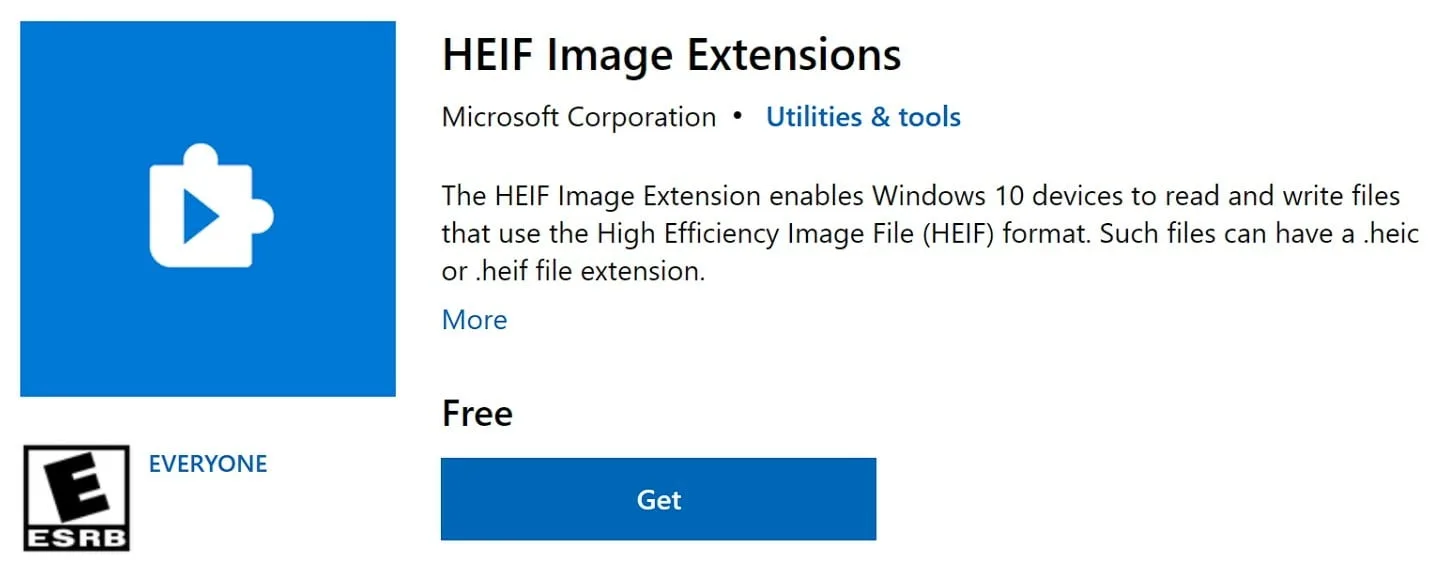
To get the free versions, you have to bypass the search entirely and go directly to the app pages:
Both of these install with a single click. There is no payment screen. Once they are installed, Windows Photos and File Explorer thumbnails will immediately start previewing HEIC images and playing HEVC video just like any normal file.
This workaround has functioned perfectly on every Windows 10 and 11 install I have tried it on. If Microsoft ever decides to close this loophole, the fallback is a third-party codec pack like K-Lite. However, I always recommend trying this official route first, since it integrates far more cleanly with the built-in Windows applications.
Advertisement